Introduction to Python and Microcontrollers
ESP32-S3 WROOM Setup — Windows
1. Install the CH343 USB Driver
The ESP32-S3 WROOM uses the CH343 chip for USB-to-serial communication. You must install its driver before your computer can communicate with the board.
- Install driverCH343SER.EXE
- Open the folder and double-click CH343SER.EXE.
- Click INSTALL and wait for the installation to complete.
- Close all dialogs.
- To test
- Connect the ESP32-S3 WROOM and verify in Device Manager that USB-Enhanced-SERIAL CH343 (COMx) now appears under Ports.
2. Install Thonny IDE
Thonny is the recommended Python IDE for programming the ESP32-S3 with MicroPython.
- Download the installer: https://github.com/thonny/thonny/releases/download/v5.0.0/thonny-5.0.0-x64.exe
- Double-click the downloaded
.exefile. - Follow the installer — click Next through each step.
- Optionally change the installation path via Browse.
- Check Create desktop icon for easy access later.
- Click Install and wait for completion. Do not click Cancel during installation.
- Click Finish.
3. Install Python 3
Python 3 must be installed on your computer before you can burn MicroPython firmware to the board.
- Download and install from: https://www.python.org/downloads/
- Follow the official installer instructions. Make sure to check Add Python to PATH during installation.
4. Flash MicroPython Firmware
The ESP32-S3 needs MicroPython firmware flashed onto it before you can run Python programs.
The firmware is located in setup/Python_Firmware/ESP32_GENERIC_S3-SPIRAM_OCT-20250809-v1.26.0.bin
Flash the firmware:
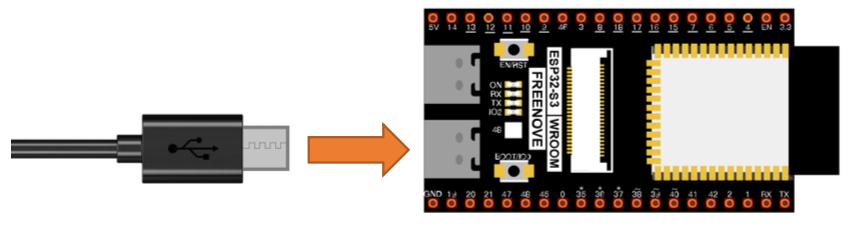
- Connect the ESP32-S3 WROOM to your computer via USB.
- Use the right hand USB3 connection on the microcontroller
- If the blue light is blinking when connected press the reset (RST) button
- Open the folder
setup/Python/Python_Firmwarein File Explorer. - Click on the address bar, type
cmd, and press Enter to open a Command Prompt in that folder. - Run the following command:
python windows.py - Wait for the firmware to finish burning. You will see a completion message when done.
5. Configure Thonny
- Open Thonny (use the desktop icon or Start Menu).
- Go to View → enable Files and Shell.
- Go to Run → Configure interpreter.
- Set the interpreter to MicroPython (ESP32).
- Set the port to USB-Enhanced-SERIAL CH343 (COMx) — the COM number shown in Device Manager.
- Click OK.
6. Test the Connection
In the Shell panel at the bottom of Thonny, type:
print('hello world')
Press Enter. If hello world is printed back, the connection is working correctly.
7. Running Code
Run Online (while connected to PC)
- In Thonny, click Open… → This computer.
- Navigate to 01_first_examples/code/HelloWorld.py
- Click Run current script (green play button).
Note: If you press the reset button on the ESP32-S3 while running online, the code will not restart automatically.